Walking Modes
FitOSC Walking Modes
FitOSC supports three walking modes that control how your in-game avatar movement speed is determined. The active mode is shown by the green indicator in the Speed Override Panel.
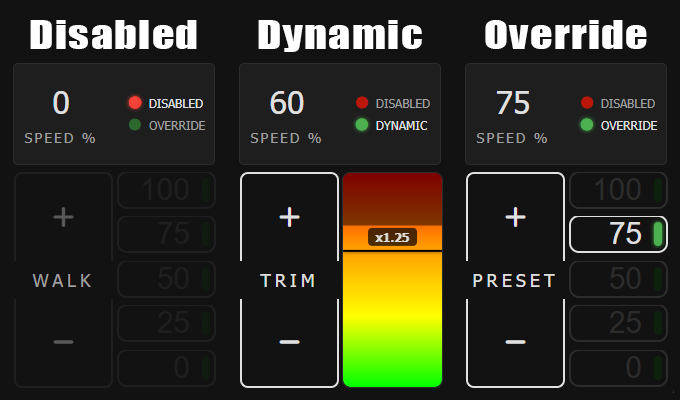
Disabled
When no walking mode is active, the DISABLED indicator is lit red. No walking speed is sent to VRChat — your avatar will not walk regardless of treadmill activity.
Dynamic
In Dynamic mode, the DYNAMIC indicator is lit green. Your avatar's walking speed is calculated automatically based on the treadmill's current belt speed, and the SPEED % display updates in real time to reflect it.
This mode exposes a TRIM control:
| Element | Description |
|---|---|
| Trim Controls | Adjusts a multiplier applied on top of the calculated speed. |
| Trim bar | A color bar (green → red) that visualizes the current trim multiplier. Green indicates a lower multiplier; red indicates a higher one. |
| Multiplier label | Displays the current trim multiplier value (e.g. x1.25). |
Override
In Override mode, the OVERRIDE indicator is lit green. Your avatar's walking speed is locked to a fixed percentage that you choose, regardless of the treadmill's actual belt speed.
This mode exposes a PRESET control:
| Element | Description |
|---|---|
| Speed | Displays the currently selected override percentage. |
| Preset | Steps the override percentage up or down. |
| Preset buttons | Quickly jumps to a common speed percentage. The active selection is highlighted. |
Override mode is useful when you want a consistent avatar walking speed independent of treadmill speed changes, such as walking in groups.
Catch Up / Slow Down
While walking, you can temporarily adjust your avatar's speed in real time using the Speed Modifier input — bound to the right thumbstick by default. Pushing the stick forward speeds the avatar up; pulling back slows it down. Releasing the stick returns it to neutral.
| Direction | Effect |
|---|---|
| Push forward (+1) | Avatar moves up to 2× the calculated speed. |
| Neutral (0) | No adjustment — walking speed follows the formula as-is. |
| Pull back (−1) | Avatar speed reduced to 0. |
This is useful for catching up when the belt is moving faster than your avatar, or for temporarily slowing your avatar while the treadmill decelerates.
The Speed Modifier binding is configured in SteamVR's controller settings. See Controls for default bindings and how to remap them.
Speed Calculation
The final locomotion value sent to VRChat is derived from the following formula:
| Variable | Description |
|---|---|
currentSpeedKph | The treadmill's current belt speed in km/h (converted from mph if the treadmill reports in imperial). |
maxSpeedKph | The configured maximum speed in km/h. Acts as the normalization ceiling. |
trim | The TRIM multiplier set via the +/- control (e.g. 1.25). |
speedModifier | A thumbstick-driven multiplier smoothed via linear interpolation. Equals 1 + RightThumbstickY, clamped to [0, 2]. At rest (thumbstick centered) this is 1.0. |
walkingSpeed | The normalized walking speed output in the range [0, 1] sent to VRChat. |
Use TRIM to fine-tune how aggressively your avatar movement tracks the treadmill speed. A multiplier above 1.0 makes the avatar walk faster relative to the belt speed; below 1.0 makes it slower.
Simulator
Use the controls below to interactively explore how each walking mode affects the output sent to VRChat.