Interface Overview
Overview of the FitOSC interface
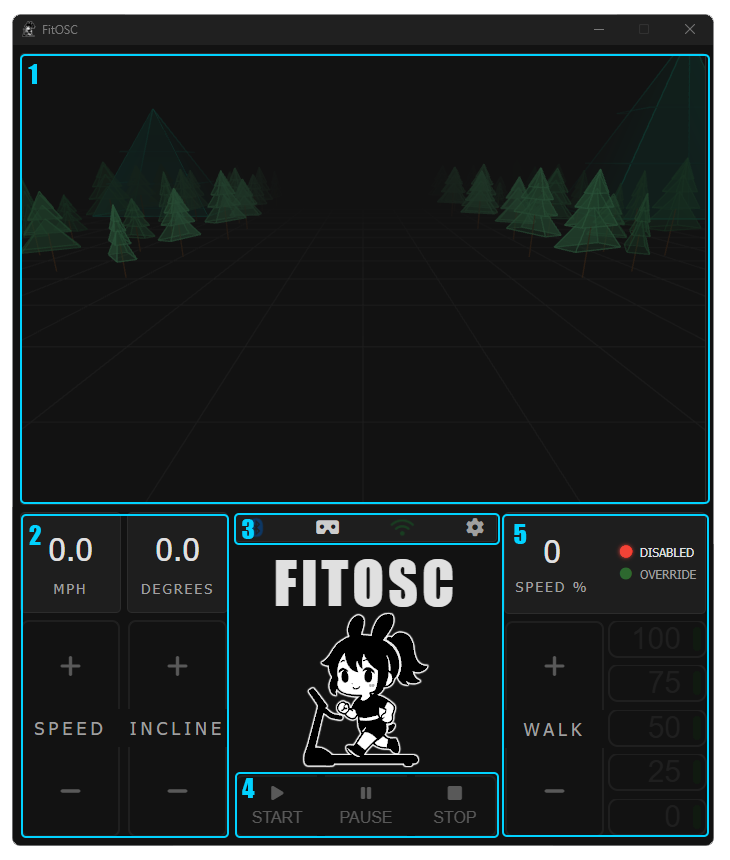
1. System Preview
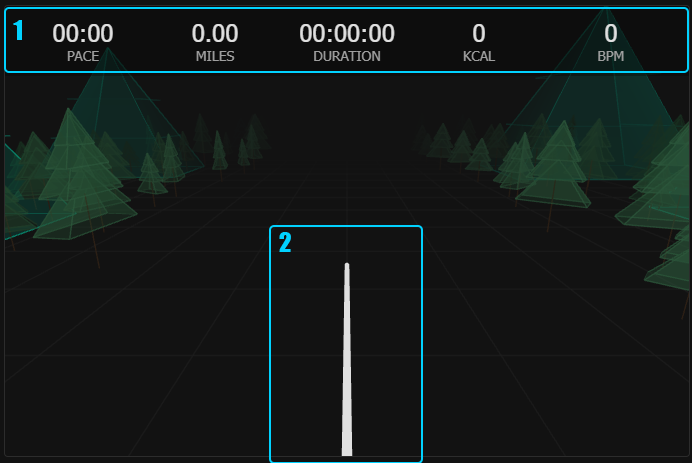
The top section of the interface displays a real-time 3D environment preview. This low-poly scene provides a visual representation of your current movement state — the scene responds to your walking speed, giving you visual feedback about your treadmill activity without needing to look at raw numbers.
2. Speed & Incline Controls
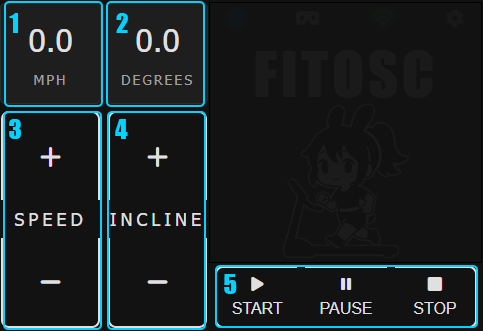
The bottom-left panel shows your current treadmill readings and lets you manually adjust them:
| Number | Control | Description |
|---|---|---|
| 1 | Speed | Displays the current treadmill belt speed. |
| 2 | Degrees | Displays the current treadmill incline angle in degrees. |
| 3 | Speed Controls | Manually increases or decreases the treadmill speed. |
| 4 | Incline Controls | Manually increases or decreases the treadmill incline. |
| 5 | State Controls | Sends a state command to the treadmill to control the treadmill. |
Manual adjustments via these controls send direct commands to the treadmill. Changes take effect immediately.
3. Status Panel

The center panel shows the current connection and application status. Along the top of the panel are four icons:
| Icon | Description |
|---|---|
| Bluetooth | Indicates whether FitOSC has an active connection to a treadmill. |
| VR Headset | Indicates whether FitOSC has an active connection to SteamVR / a VR headset. |
| Signal | Shows the OSC connection status with VRChat. |
| Settings | Opens the FitOSC settings window. |
Each indicator reflects the current state of its respective connection:
| State | Meaning |
|---|---|
| Blinking | Actively searching for a connection. |
| Red | A problem has been detected with the connection. |
| Solid | Connected and operating normally. |
Clicking an indicator icon will restart that interface.
4. Speed Override Panel
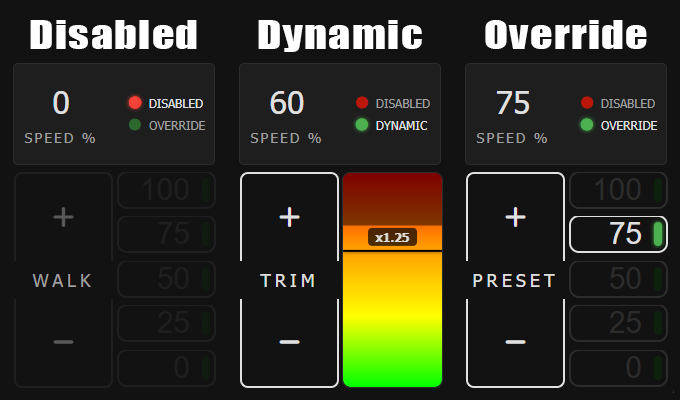
The bottom-right panel lets you control the walking speed of the treadmill:
| Element | Description |
|---|---|
| Speed % | Displays the currently walking power that is used to control the player in game. This displayes as a percentage between a range of 0 to 100 %. |
| Disabled (red) | Indicates that no speed override is active — the treadmill responds to normal speed controls. |
| Mode (green) | Indicates that the selected mode is active and the treadmill. The mode indicates the walking behavior that the user has selected. |
| Walk | Increases or decreases the override speed percentage. |
| Preset buttons (0, 25, 50, 75, 100) | Quickly sets the override to a common speed percentage. |
The display for this side could change depending on your current walking mode. See walking modes for more information